

Team Webhooks are available on higher plans or as a paid add-on.
Where to configure
- Go to Dashboard → Settings → Developers → Webhooks (or use the Webhooks & API shortcut in the top-right user menu).
- Click Add Endpoint.
Step 1: Set your endpoint URL
- Enter the Webhook URL (a public HTTPS endpoint that accepts
POST).
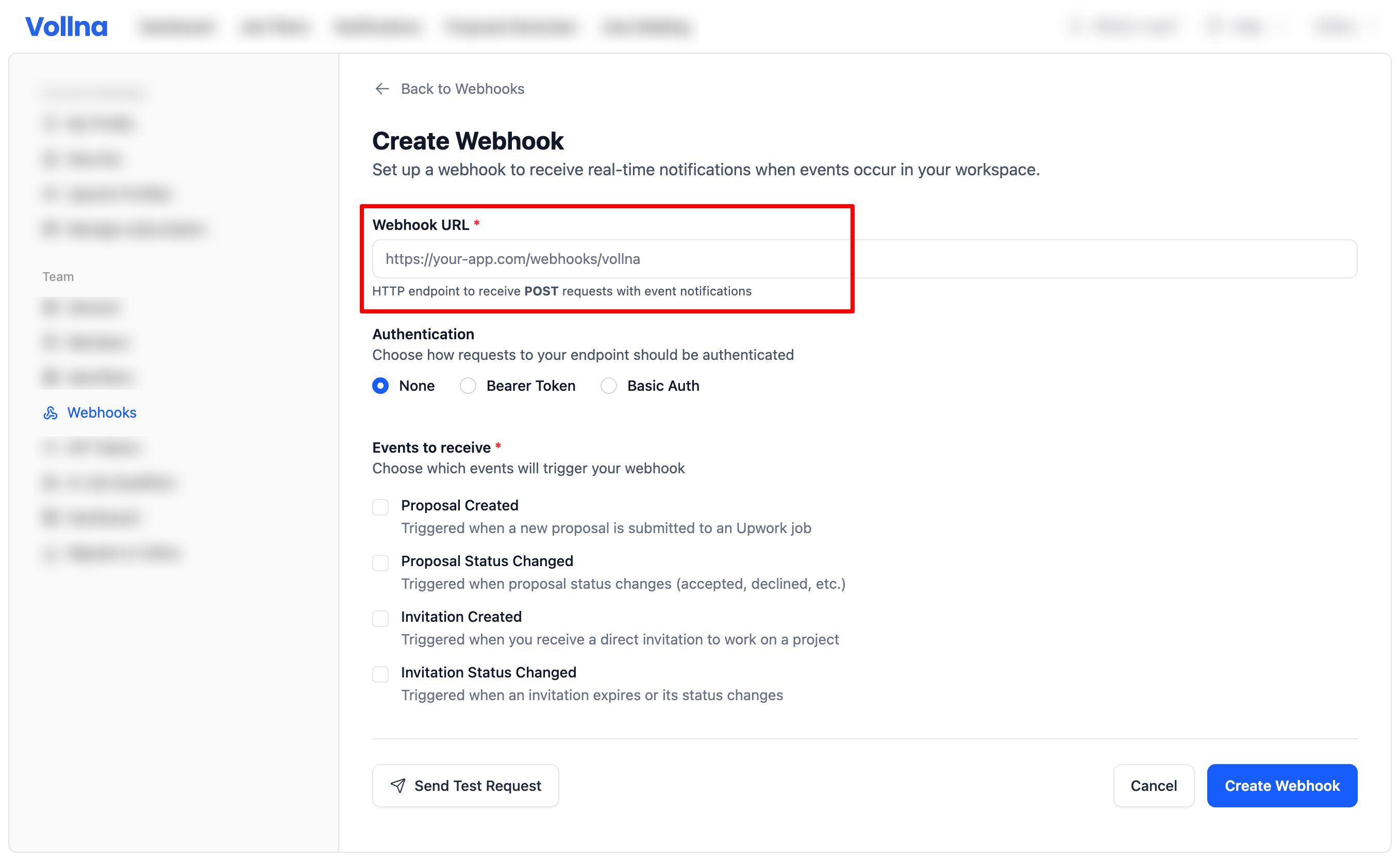
Step 2: Pick events to receive
You can subscribe to one or more events:- Proposal Created (
upwork_proposal.created): triggered when a new proposal is saved in your workspace. - Proposal Status Changed (
upwork_proposal.status_changed): triggered when the proposal’s state changes. This includes view state changes (e.g. whenisViewedtoggles), and also changes toisInterviewed,isHired,isWithdrawn,isArchived. - Invitation Created (
upwork_invitation.created): triggered when a new invitation is saved in your workspace. - Invitation Status Changed (
upwork_invitation.status_changed): triggered when an invitation’sstatusorreasonchanges.
Step 3 (optional): Configure authentication
If your endpoint requires auth, Vollna can send:- Bearer Token:
Authorization: Bearer <token> - Basic Auth:
Authorization: Basic base64(username:password) - Custom Header: any header name and value you configure (e.g.
X-Api-Key: <value>)
Technical Specifications
Understanding the technical details of how Vollna sends webhook requests:- HTTP Method: POST
- Content-Type: application/json
- Timeout: 10 seconds
- User-Agent:
Vollna-Webhooks/1.0 X-Vollna-Event-Idheader: every request carries the sameevt_*identifier as theidfield in the JSON body — useful for logging, deduping, and tracing without parsing the body.
Testing Your Webhook
Click Send Test Request in the webhook form to check that your endpoint is reachable and accepts your auth settings. The test request has the eventwebhook.test, and its data is your newest proposal in the same shape as a live event. If you picked only invitation events, it is your newest invitation. With no proposals or invitations yet, data holds a test message.
Payload format
Every request is JSON with the same top-level structure:id: unique delivery identifier prefixed withevt_(e.g.evt_a4f1c0d3e8b9...). One id per delivery — log it so you can trace any request back to the matching row under Logs.event: the event name (e.g.upwork_proposal.status_changed)timestamp: ISO-8601 timestampdata: the full proposal or invitation, in the same shape as the Proposals API and Invitations API return it, including the nestedprojectobject
The
id is a public, opaque token. It does not encode any internal database id and is safe to log, store, and forward. The same value is sent in the X-Vollna-Event-Id HTTP header.Example: proposal status/view state changed
The nestedproject object is shortened here — it carries every field of the Project schema.
Debugging delivery
Open Dashboard → Settings → Developers → Webhooks → Logs to inspect every delivery attempt. Each row shows the timestamp (in your timezone, with full UTC + milliseconds on hover), theevt_* Message ID, event type, and status. Click a row to view the request payload, response body, and any error message.
The Activity tab shows hourly delivery counts (Successful / Failed) over the last 6 hours so you can spot incidents at a glance.
Best practices
- Return 2xx quickly (ideally < 5s). Do heavy work asynchronously.
- Log the
idon receipt — pair it with your own internal handler trace so you can correlate problems with the Logs tab in Vollna. - Make handlers idempotent based on the business id inside
data(e.g.applicationUid) — your handler may run more than once for the same underlying record if you re-process or replay traffic. - Validate JSON and tolerate missing/optional fields in
data.
Troubleshooting
Common Issues
Webhook Not Receiving Requests
- Check webhook URL: Ensure it’s publicly accessible and returns a 2xx status code
- Verify authentication: If using auth, check credentials are correct
- Test connectivity: Use the “Send test notification” button in the setup form
- Check firewall: Ensure your server allows incoming requests from Vollna
Missing Fields in Webhook Data
- The
dataobject is a serialized entity and fields may be optional depending on the record. - Always check if a field exists before accessing it.
Testing Your Integration
- Use test notification: Click “Send Test Request” in the webhook setup
- Check logs: Monitor your server logs for incoming requests
- Validate JSON: Ensure your endpoint can parse the JSON payload
- Test authentication: Verify auth headers are received correctly
- Response handling: Ensure you return appropriate HTTP status codes